Up your viz game -Newbe+ Tableau users if you are past Getting Started and ready to use Tableau to tell stories with your viz, use advanced calculations to get deeper into the data or just want to better understand why Tableau does that – then these may help you meet that goal - Enjoy
Sunday, July 12, 2020
FAQ Series - Duration and Time - Not the same thing
Sunday, June 21, 2020
FAQ Series - Context filter - What do they really do?
In Tableau , like other languages, the sequence that filters or calculations are executed is controlled by the Order of Operations. The order starts with 3 filters – Extract filters limit the data passing from the data source to tableau, Data Source filters further limit data available in the workbook and can be specific to values within dimensions, and Context filters limit the data available to the remainder of the calculations, sets, Top N, dimension or measure filters or table calculations
But how exactly do context filters affect Top N and LOD expressions
The Context filters are applied in the step prior to creating sets, setting Top N filters and performing LOD calculations. When a dimension is “placed in Context” and then the values are only the “un-filtered” data is available in the LOD or the Top N calculations
Let’s look at an example using an LOD with Superstore data using a Fixed expression that combines segments and category:
And a very simple text table viz:
Now apply a filter on Region and see the affect of the context filter
First filter out Central region with a normal dimension filter (after the context filter and the LOD expression are applied). The results have not changed – the filter did not affect the LOD results (Often referred to as “Ignoring the filter”)
Now place the region filter in Context so it is applied before the LOD is calculated: And as expected the results from the LOD are now changed (they don’t include the Central region that was filtered out by the Context Region filter)
Top N Filters
The Top N filter option on sets and dimensional filters are also affected by the placement of a dimension in Context
Superstore data will be used in the example and the Top N option will be used on Sub-categories
Applying the filter on a text table and using year on columns results in
Out of context the East region is removed but the Top 3 sub-categories are unchanged - That is because the Top N were determined before the dimension filter was applied
When Region is placed in context the East region is again removed but Tables now replace Storage – The Top 3 Total across the 3 regions are now Chairs, Phones and Tables – the East region was filtered out of the data in the Context filter before the Top N was determined. Note also the values or Chairs and Phones in the other regions remains unchanged -
The total across the 3 regions is calculated for each sub-category and it is the 3-region total that is used to determine the Top N
That may not be what you wanted – How would you determine the Top N subcategories based on their sales in each Region independently
That solution will required the use on an LOD and a Ranking function –
And
And a Filter based on the Rank
The LOD determines the sub-category sales in each region and then the Rank (a table calculation ) is applied
And filtering the East region removes if from the chart without affecting the top 3 determined by the rank in the other regions
Placing a dimension in the Context filter is a decision that you control – it changes the order in which filters are applied to the data table and the calculation results. Make your decision on how you want the filter to act.
It may take a little practice, but you will get there in no time.
A downloadable workbook containing these examples can be found at :
https://public.tableau.com/profile/jim.dehner#!/vizhome/ContexFilters/ContextFilters
Jim
Friday, June 12, 2020
FAQ - Convert String Dates
My blog has moved to jimdehner.com
Thank you for all the support over the past 2 years - I recently updated my blog to make it easier to read, improve the rendering of images and tie back to video presentations that are associated with the content - Check it out at Jim's new blog -
Dates are a special data type in Tableau the unique properties of being self-sequencing, sorting and can be used in date functions to set ranges, filter and aggregations. But some legacy systems or public sources sometimes cast dates as a single string or individual strings for each date part. Working with “real date” is much easier and converting strings to date is really not that difficult.
First – how do you know if your date is really text –
Open the Data Source Tab – the data may look like a date but if the Data Type is ABC then it has been loaded as a String
The first solution is to convert the data in the frame
Select the ABC icon and select Date for Discrete values and Date & Time for continuous values
What if the date is spread over several individual fields like Month, - January, Quarter – Q3, Period – 2019Q2 and a year that may be a number or a String. Those cases will require a calculation before converting to a real date.
Month – year data entered as a String and Number
Can be converted to the first of the month with a Function – Date()
And it returns this
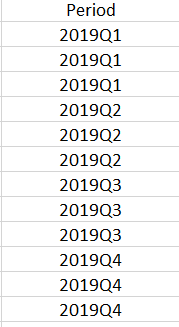
Occasionally periods are entered in a string – Dateparse is a function that can be used to convert data like this:
The expression may look complex but if you look at it in pieces -
The string in quotation just tells Tableau how the year – Month – and Date fields will be entered.
The Year is the first 4 characters of the Period field, the right 2 characters are the quarter designation – a Case statement will convert them and the firs lot the month “01” is used for the day.
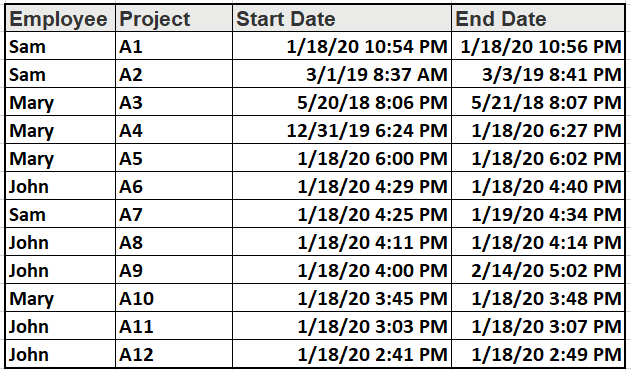
One final example – converting timestamp dates to a duration – Some users have data that includes a start and end timestamp and need to determine the duration of an event – In days, hours, minutes and seconds
The data may look like this
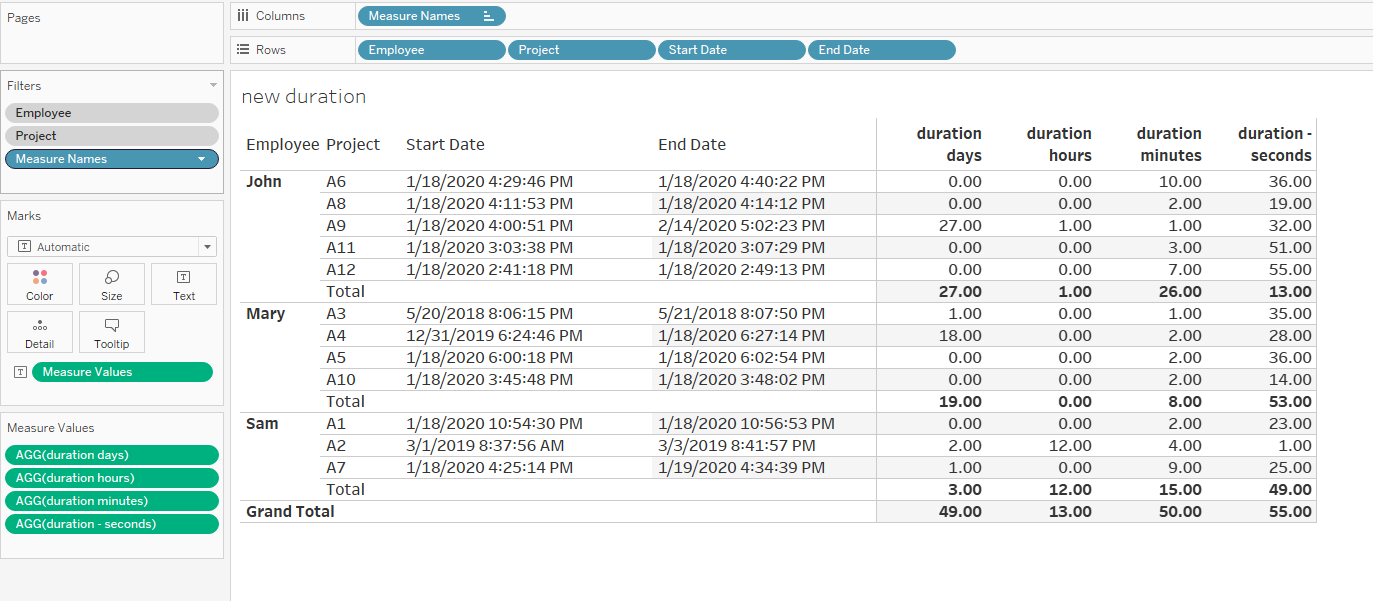
One solution is to determine the duration at the lowest level – seconds and then convert the results into Days, Hours, Minutes, Seconds in separate calculations
Datediff will return the duration in seconds based on the start and end timestamps
Then number of days is simply the integer part of the total duration in seconds at divided by the number of seconds in a day – for example
Days = Int([datediff at the second level]/(24*60*60))
For the remaining dateparts, make use of the Modulo function – Modulo returns the remainder of a division – e.g. modulo will return 3 for 7/4 – So when dividing the total seconds by the number of seconds in a day modulo will return the number of seconds left over – dividing that number by the number of seconds in an hour (3600) and taking the integer value will return the number of hours
Hours = INT(([datediff at the second level]%(24*(60)*60))/(60*60))
And
Minutes = INT(([datediff at the second level]%((60)*60))/(60))
And Seconds = INT(([datediff at the second level]%(60)))
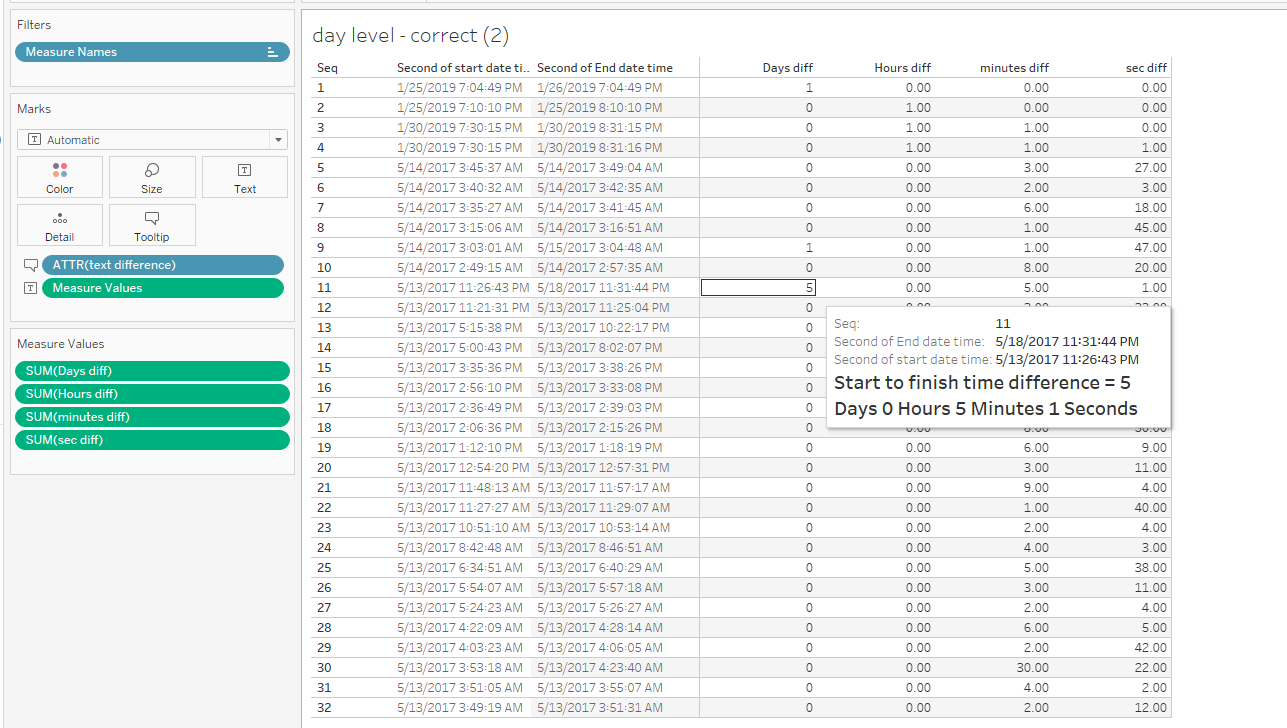
Finally – concatenating the parts together and adding the result to the tooltip
Hope this helps the next time you are faced with a Date field that was entered as text. Now practice on some data of your own
Post splash image
-
Cannot Mix Aggregate and Non-aggregate Look familiar: One of the most frequent questions we see on the Forum results from trying...
-
My Blog has moved - UPDATED blog post Not all Nulls are created equal? - Really? Nulls - they break your calculations and mess with you...
-
My blog has moved to jimdehner.com Thank you for all the support over the past 2 years - I recently updated my blog to make it easier to re...